 61d201e772
* tests based on jetty-runner do not work because
  the jetty-runner JAR contains invalid Java SPI services config files
* due to these invalid files Jetty 11.0.20+ is unable to properly
  initialize itself itself
* This change removes all tests based on jetty-runner
  and bumps the Jetty version to 11.0.24
* There are already jobs using the Jetty Maven plugin to
  launch a testing instance + run all tests
184 lines
7.2 KiB
Markdown
184 lines
7.2 KiB
Markdown
# PlantUML Server
|
|
|
|
[](https://www.gnu.org/licenses/gpl-3.0)
|
|
[](https://github.com/plantuml/plantuml-server/tags)
|
|

|
|

|
|
|
|
[](https://www.plantuml.com/plantuml)
|
|
[](https://www.plantuml.com/plantuml)
|
|
[](https://www.plantuml.com/plantuml)
|
|
|
|
[](https://github.com/sponsors/plantuml/)
|
|
[](https://hub.docker.com/r/plantuml/plantuml-server)
|
|

|
|

|
|
|
|
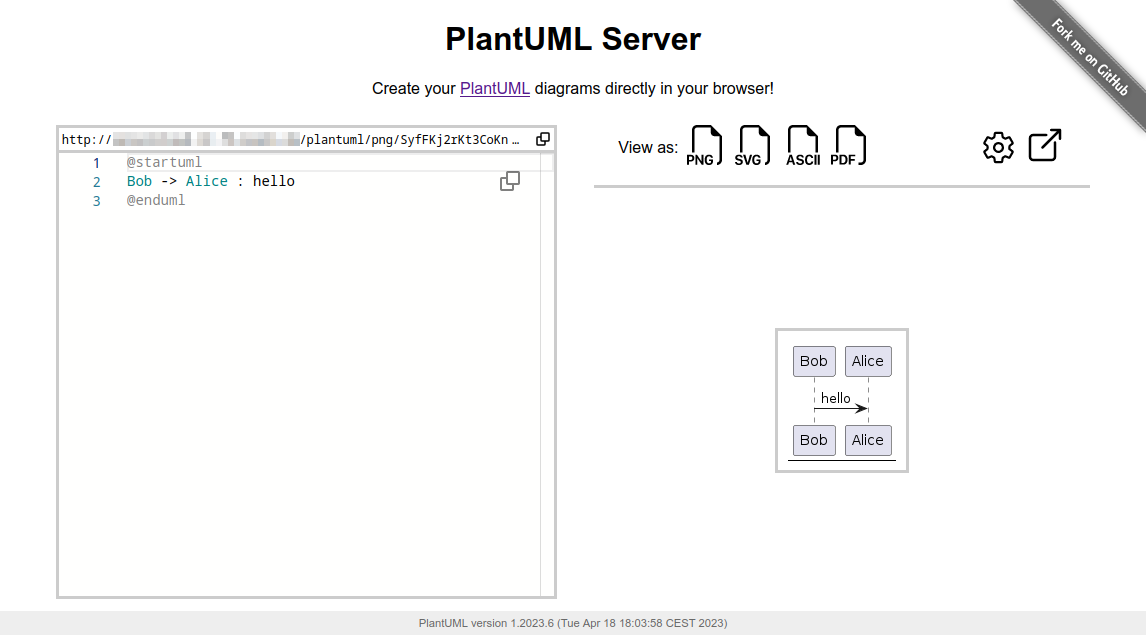
PlantUML Server is a web application to generate UML diagrams on-the-fly.
|
|
|
|
> [PlantUML is **not** affected by the log4j vulnerability.](https://github.com/plantuml/plantuml/issues/826)
|
|
|
|
> **Breaking changes**:
|
|
> The PlantUML core removed the deprecated `ALLOW_PLANTUML_INCLUDE` environment property feature and switch to the
|
|
> `PLANTUML_SECURITY_PROFILE` concept with version `v1.2023.9`.
|
|
> All details about PlantUML's security can be found on <https://plantuml.com/security>.
|
|
>
|
|
> By default PlantUML server sets the `PLANTUML_SECURITY_PROFILE` to `INTERNET`.
|
|
> If you need more access to e.g. other ports than 80 (http) and 443 (https) or even access to local files, please
|
|
> consider using one of the allowlist features.
|
|
> It is strongly advised **not** to set the `PLANTUML_SECURITY_PROFILE` below `INTERNET`!
|
|
|
|
|
|
|
|
More examples and features about the Web UI can be found in [docs/WebUI](https://github.com/plantuml/plantuml-server/tree/master/docs/WebUI).
|
|
|
|
To know more about PlantUML, please visit https://plantuml.com.
|
|
|
|
|
|
## Requirements
|
|
|
|
- jre/jdk 11 or above
|
|
- apache maven 3.0.2 or above
|
|
|
|
## Recommendations
|
|
|
|
- Jetty 11 or above
|
|
- Tomcat 10 or above
|
|
|
|
|
|
## How to run the server
|
|
|
|
Just run:
|
|
|
|
```sh
|
|
mvn jetty:run
|
|
```
|
|
|
|
The server is now listening to [http://localhost:8080/plantuml](http://localhost:8080/plantuml).
|
|
In this way the server is run on an embedded jetty server.
|
|
|
|
You can specify the port at which it runs:
|
|
|
|
```sh
|
|
mvn jetty:run -Djetty.http.port=9999
|
|
```
|
|
|
|
|
|
## How to run the server with Docker
|
|
|
|
You can run Plantuml with jetty or tomcat container
|
|
```sh
|
|
docker run -d -p 8080:8080 plantuml/plantuml-server:jetty
|
|
docker run -d -p 8080:8080 plantuml/plantuml-server:tomcat
|
|
```
|
|
|
|
The server is now listening to [http://localhost:8080](http://localhost:8080).
|
|
|
|
### Read-only container
|
|
|
|
The jetty container supports read-only files system, you can run the read-only mode with:
|
|
```sh
|
|
docker run -d -p 8080:8080 --read-only -v /tmp/jetty plantuml/plantuml-server:jetty
|
|
```
|
|
|
|
This makes the container compatible with more restricted environment such as OpenShift, just make sure you mount a volume (can be ephemeral) on `/tmp/jetty`.
|
|
|
|
### Change base URL
|
|
|
|
To run plantuml using different base url, change the `docker-compose.yml` file:
|
|
```yaml
|
|
environment:
|
|
- BASE_URL=plantuml
|
|
```
|
|
|
|
And run `docker-compose up`. This will start a modified version of the image using the base url `/plantuml`, e.g. http://localhost:8080/plantuml
|
|
|
|
|
|
## How to set PlantUML options
|
|
|
|
You can apply some option to your PlantUML server with environment variable.
|
|
|
|
If you're using the `jetty` Maven plugin, use the -D` flag to pass environment variables:
|
|
```sh
|
|
mvn jetty:run -D THE_ENV_VARIABLE=THE_ENV_VALUE -Djetty.http.port=9999
|
|
```
|
|
|
|
If you use docker, you can use the `-e` flag:
|
|
```sh
|
|
docker run -d -p 9999:8080 -e THE_ENV_VARIABLE=THE_ENV_VALUE plantuml/plantuml-server:jetty
|
|
```
|
|
|
|
You can set all the following variables:
|
|
|
|
* `BASE_URL`
|
|
* PlantUML Base URL path
|
|
* Default value: `ROOT`
|
|
* `PLANTUML_SECURITY_PROFILE`
|
|
* Set PlantUML security profile. See [PlantUML security](https://plantuml.com/security).
|
|
* If you need more access to e.g. other ports than 80 (http) and 443 (https) or even access to local files, please consider using one of the allowlist features:
|
|
* `plantuml.allowlist.path`
|
|
* `plantuml.include.path`
|
|
* `plantuml.allowlist.url`
|
|
* It is strongly advised **not** to set the `PLANTUML_SECURITY_PROFILE` below `INTERNET`!
|
|
* Default value: `INTERNET`
|
|
* `PLANTUML_PROPERTY_FILE`
|
|
* Set PlantUML system properties (like over the Java command line using the `-Dpropertyname=value` syntax).
|
|
* To see what kind of file content is supported, see the documentation of [`java.util.Properties.load`](https://docs.oracle.com/javase/8/docs/api/java/util/Properties.html#load-java.io.Reader-).
|
|
* Default value: `null`
|
|
* `PLANTUML_CONFIG_FILE`
|
|
* Local path to a PlantUML configuration file (identical to the `-config` flag on the CLI)
|
|
* File content will be added before each PlantUML diagram code.
|
|
* Default value: `null`
|
|
* `PLANTUML_LIMIT_SIZE`
|
|
* Limits image width and height
|
|
* Default value: `4096`
|
|
* `PLANTUML_STATS`
|
|
* Set it to `on` to enable [statistics report](https://plantuml.com/statistics-report)
|
|
* Default value: `off`
|
|
* `HTTP_AUTHORIZATION`
|
|
* when calling the `proxy` endpoint, the value of `HTTP_AUTHORIZATION` will be used to set the HTTP Authorization header
|
|
* Default value: `null`
|
|
* `HTTP_PROXY_READ_TIMEOUT`
|
|
* when calling the `proxy` endpoint, the value of `HTTP_PROXY_READ_TIMEOUT` will be the connection read timeout in milliseconds
|
|
* Default value: `10000` (10 seconds)
|
|
|
|
|
|
## Alternate: How to build your docker image
|
|
|
|
This method uses maven to run the application. That requires internet connectivity.
|
|
So, you can use following command to create a self-contained docker image that will "just work".
|
|
|
|
```sh
|
|
docker image build -f Dockerfile.jetty -t plantuml-server:local .
|
|
docker run -d -p 8080:8080 plantuml-server:local
|
|
```
|
|
The server is now listening to [http://localhost:8080](http://localhost:8080).
|
|
|
|
You may specify the port in `-p` Docker command line argument.
|
|
|
|
|
|
## How to generate the war
|
|
|
|
To build the war, just run:
|
|
```sh
|
|
mvn package
|
|
```
|
|
at the root directory of the project to produce plantuml.war in the target/ directory.
|
|
|
|
NOTE: If you want that the generated war includes the `apache-jsp` artifact run:
|
|
```sh
|
|
mvn package -Dapache-jsp.scope=compile
|
|
```
|
|
|
|
If you want to generate the war with java 8 as target just remove the src/test directory and use `pom.jdk8.xml`.
|
|
```sh
|
|
rm -rf src/test
|
|
mvn package -f pom.jdk8.xml [-Dapache-jsp.scope=compile]
|
|
```
|
|
|
|
## Use with reverse-proxy
|
|
|
|
It is possible to use PlantUML with a reverse proxy.
|
|
|
|
You can find this and other examples [here](https://github.com/plantuml/plantuml-server/tree/master/examples).
|